
























[[post.title]]
We're changing for you!
Check out our new website 
We're changing for you!
Check out our new website
BMW Original Parts
Search by VIN
Search by VIN
Dec 30, 2025
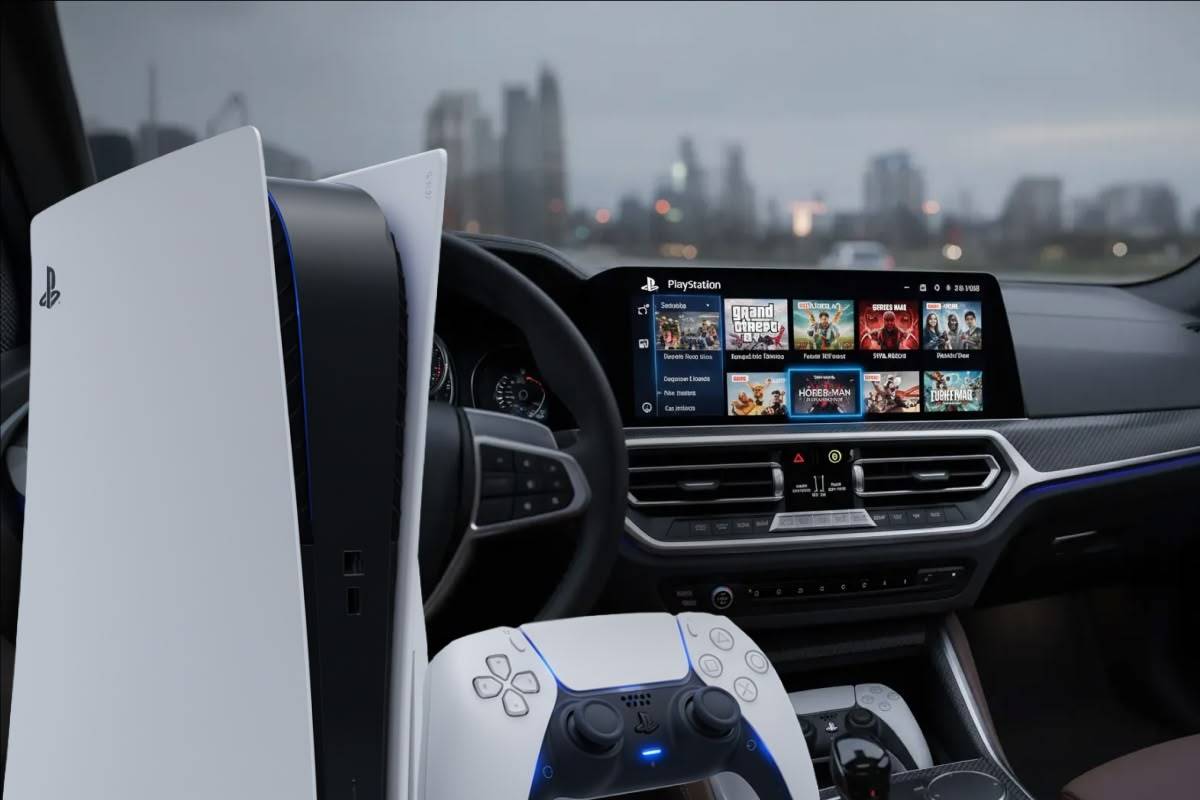
Have you ever just been staring at your BMW iDrive screen and thought, “man… I would love to play some Goat Simulator or GTA right now.” If you’re a normal person, probably not. However, if you’re reading this, chances are you have a little bit of non-normalcy in you.
So, if you ever wondered how to hook up your PS5 or Xbox Series console to your BMW, this is the guide for you! Let’s set one thing straight right away though: this is not a usual modification and let’s be real – it doesn’t even make too much sense. This is one of those “we’re doing it because we can” type of scenarios.
Sit back, relax, and enjoy the journey of turning a BMW into a pointless car gaming setup!
Ahhh. The age old question no one asked. But yes, it is possible if you have the right tools. Remember back in the day when people put big speakers, TVs, and PlayStation 2 consoles in their rides? Now cars have good sound systems, iDrive screens in BMWs take the part of the TV, and mobile gaming is easy, limiting the in-car gaming market.
To bring back some memories of yesteryear, we wanted to install a PS5 in our 2015 BMW F30. During the process we found out that the principle applies to any BMW that our MMI PRO is compatible with (more on that in a second).
We found for the perfect car gaming setup, you need the following:
How to mix these ingredients?
If you really want to follow along with the build on this one, we do have a video on it that you can see on our YouTube channel:
https://www.youtube.com/watch?v=997gS1XKJTM
CAUTION: we strongly advise against using these features while driving. They are an amazing way to pass time when waiting in a parking lot, but you should NEVER get distracted behind the wheel. Focus on the road and stay safe! BimmerTech does not condone reckless behavior on the road and is not responsible for any damages, injuries, or death caused by using our products unlawfully.
Anyway, your first step before doing anything is making sure you can plug your PS5 into your BMW iDrive screen. And for that, you need our Android Auto and CarPlay MMI PRO Retrofit…
While we’re not trying to achieve shameless self promotion, you can’t directly plug your console into your iDrive screen without some type of an interface. We’ll cover more on what our MMI PRO can do later, but for now here are the basics. 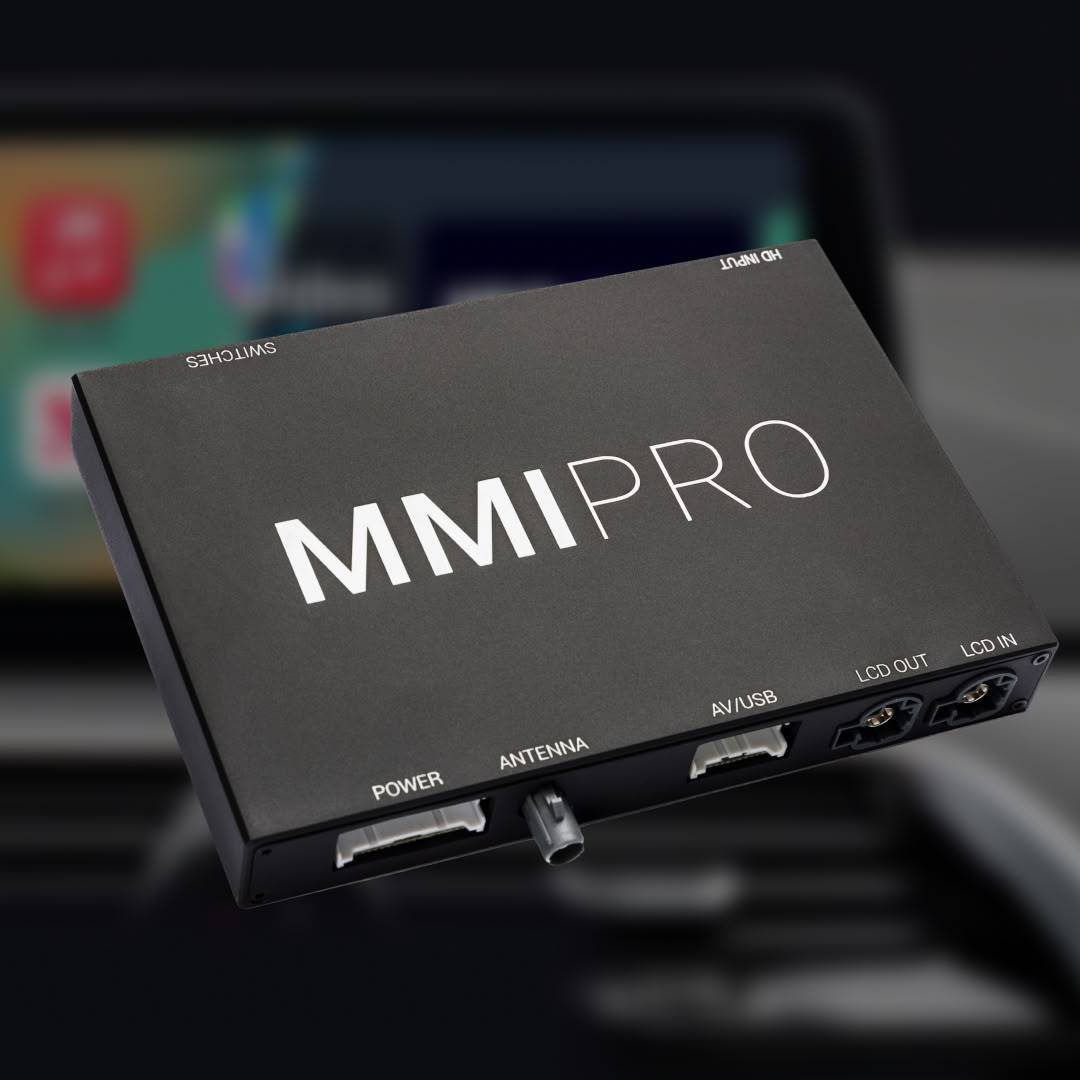
BimmerTech’s Wireless CarPlay and Android Auto MMI PRO Retrofit is a direct plug-and-play device that integrates with your BMW iDrive system. This means iDrive controller, iDrive screen, steering wheel controls, factory mics, and more. Most importantly, it gives you an HDMI port that you can plug anything into, which can then show up right on your iDrive screen along with its audio playing through your sound system.
If you want to learn more about the MMI PRO, we have TONS of videos on our channel, but here is a detailed overview of our entire CarPlay & Android Auto MMI Retrofit family.
The second equally important step is power. At peak gaming, a PlayStation 5 can draw over 200 W of power. Clearly, to support it you will need an inverter, but you will not be able to use one of those cigarette/12 V plug inverters. On the home screen of your console it should be fine, but if you were to start gaming, the console would draw more power than those plugs can offer and you could blow a fuse in your BMW.
To be on the safe side, we opted for a 300 W inverter and suggest you follow the same route. The inverter must have terminals that you can attach to your BMW’s battery. Do NOT attach it with clamps. That’s janky and will not be a good “long term” solution.
We found this 300 W inverter on Amazon for less than $25. The ring terminals are perfect as one will connect to the power terminal on the battery, and one the main ground.
You will obviously need to run an HDMI cable from the PS5 to the MMI PRO, so you’ll need to measure how long you need it to be based on where you want to mount your console.
Since we did NOT want to use electrical extension cords at all (and suggest you do the same), that meant mounting the console in the trunk, near where the battery and inverter would normally be in a BMW. A conservative over-estimation of length proved 20 feet to be just fine!
Before any keyboard warriors out there start mentioning signal degradation on an HDMI cable that long, some argue video quality will start to degrade over an HDMI cable anywhere from over 50 to as little as 5 feet. Also, we’re viewing this on an iDrive screen, which is about 10 to 12 inches – we’ll be fine even if some video quality losses occur.
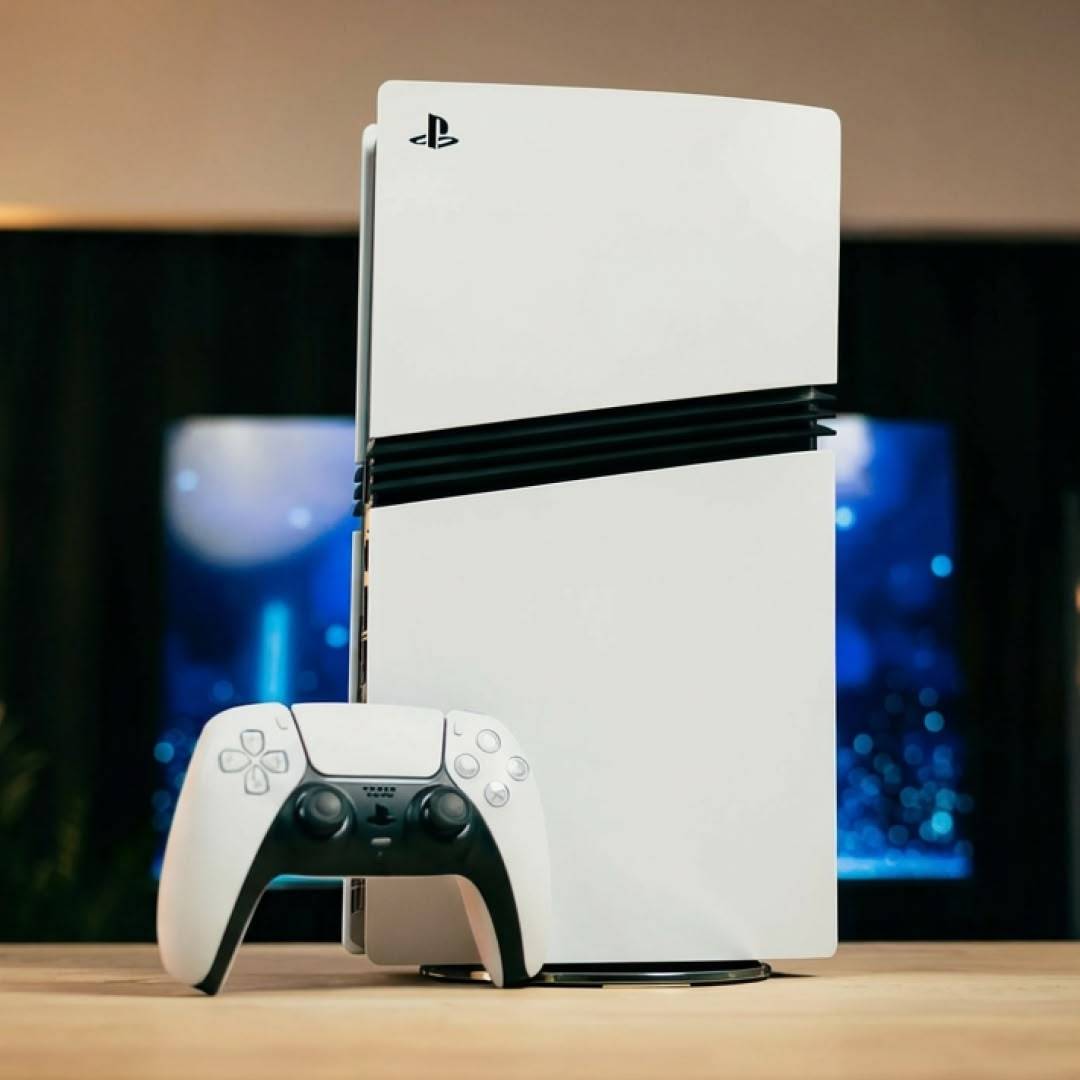 Really? This is all the way at Step 4? Well… The other three parts are “universal” and needed no matter what, so yes… Step four! In this project, we used a PlayStation 5. Spoiler Alert: an Xbox will be much easier to mount because it’s a freaking BOX, much, MUCH more regularly shaped. This leads us to the next step…
You certainly don’t want your expensive console sliding around your trunk. What we honestly suggest is keeping your console in a padded case until you plan on using it. Then take it out, plug it in, and enjoy.
However, if you insist on leaving it more "permanently" installed, you’ll need the hardware to do it. The sky really is the limit with how creative you want to get. We made a couple trips to our local Home Depot and picked up some off-the-shelf wood straps, brackets, as well as nuts and bolts.
You most likely will have to drill into your trunk’s floor panel if you want any type of secure mounting. Just remember to measure, measure, and measure! Not only for the drilling, but to determine what you need. Speaking from experience, it’s not fun to have to keep going back to the hardware store…
This will not be a step-by-step instruction manual since we don’t know what you’re planning on doing, but here is an overview of how we got it done. Definitely check out the video we did for a little more depth!
First, we have to make sure the MMI PRO is installed. That’s a topic for another article and has been in many already! If you plan on upgrading your BMW iDrive screen to a bigger one, now would be a great time since you need to remove the screen to install your MMI PRO.
PRO TIP! Test your HDMI cable before installation! We didn’t and it was faulty…
Once all that is done, start running the HDMI cable from the MMI PRO to the back of the car. You will need to take off a few pieces of trim if you want to hide the cable and do it right. Since we wanted to have our MMI PRO’s HDMI port available for anything, we plugged the 20 ft cable into the HDMI extension cable coming out of the MMI, which is an optional add-on in our store.
After securing the HDMI cable to existing harnesses with cable ties down the length of your BMW, go ahead and replace all the trim panels you took off since you’re done with that. Move to the trunk of your BMW and install your inverter in a place that’s best for you. In our BMW F30, we opted for hidden, yet still accessible. This meant behind the battery, against the passenger side sheet metal. We secured it to the wall with velcro.
The positive terminal from the inverter went right onto the accessory terminal of the main BMW battery terminal. The ground went on the negative battery terminal lead, but where it grounded to the car. This can all be seen at this point in the video.
Now, we mount the PS5. The good thing about the F30 is the storage compartment under the trunk floor panel. While it’s NOT a good place for the PS5 since it would cause a console to overheat, it is a good place to drill from above since we won’t drill into the metal! 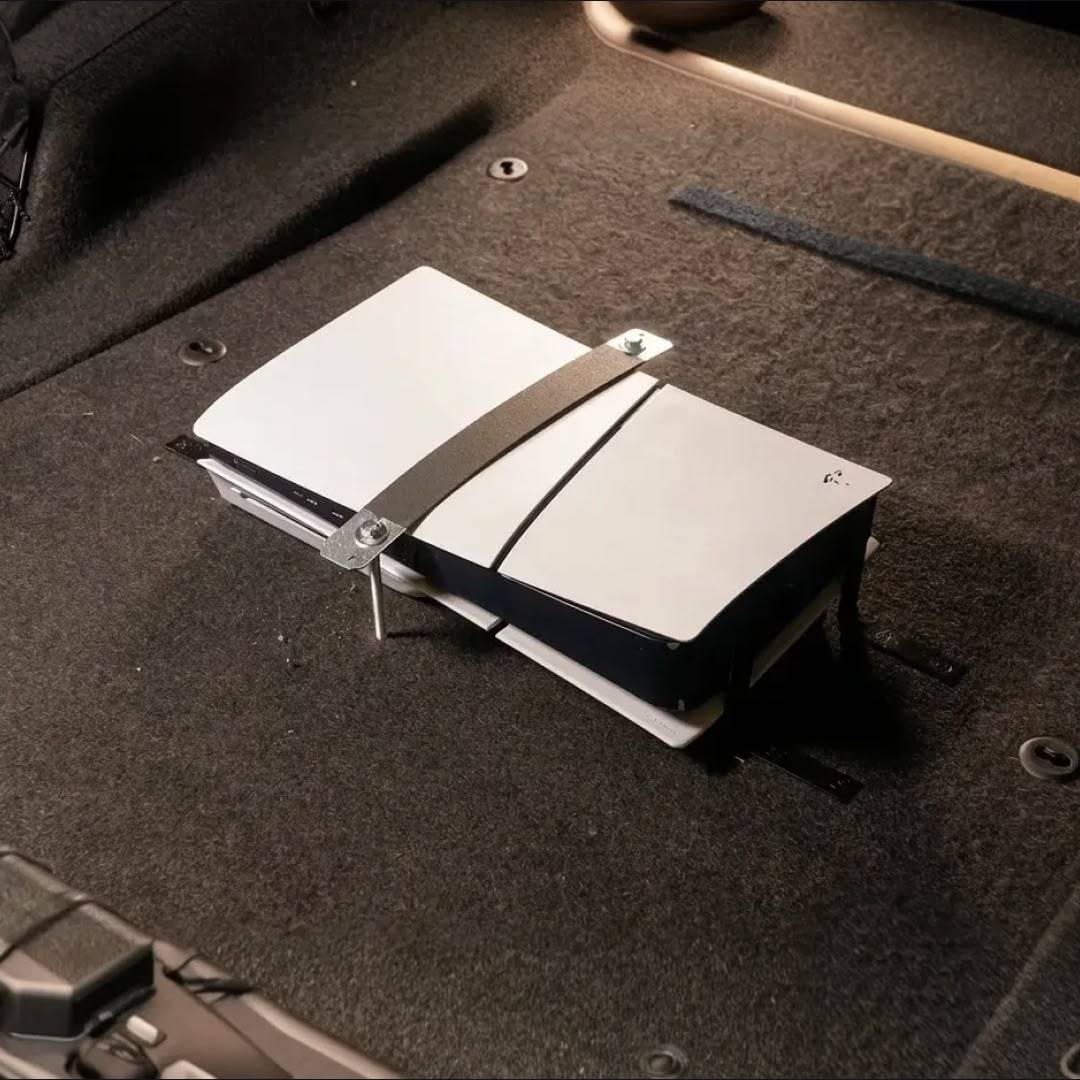
Putting the PS5 in the center of the area, we put some foam under the skinnier side to keep it level. Then we put two 2 inch angle brackets on the left and right sides to keep the PS5 from moving left to right. We also had them dipped in Plastidip to keep the brackets from scratching the PS5.
To stop the console from sliding forward and back, as well as from flying up, we placed a modified 12 inch strap tie over it. The modifications were wrapping it in black gaff tape to protect the PS5 and enlarging two holes (one on either end) to be able to fit a ¼ inch bolt.
Speaking of which… We then dropped a 4 inch ¼ inch bolt through each hole (with a washer of course), and secured them on the other side of the floor panel with wingnuts. Wingnuts were chosen to make it somewhat easier to uninstall and take your PS5 back out of your BMW.
With the console in place, you just need to run the HDMI cable to it and the console's power cable to the inverter, and you’re DONE!
A couple tips: ONLY game when the car is parked. Not at a red light and not if you’re “just a passenger.” Also, it’s best to only use this when your car is running or you’ll drain your battery really fast.
Remember how I said we’ll talk more about the MMI PRO later? Guess what! It’s later. BimmerTech’s CarPlay MMI PRO Retrofit is great for the HDMI port, but it can do so much more than that. The USB port also allows for audio or video playback and it can supply enough power for things like a Roku.
It’s best known for its ability to seamlessly integrate wireless Apple CarPlay and Android Auto into your BMW. You still retain the function of and can use BMW iDrive. The iDrive controller not only can be used to move around and make selections in CarPlay or Android auto, but some controls can be programmed to operate how you want them too.
Same with the steering wheel controls and factory microphones for Siri and Google Assistant.
I mentioned Roku before… If you plug that into the HDMI port and power into the USB port, you can have access to YouTube, Netflix, HBO Max, Prime, and so much more! This also works with Amazon Firestick, Google Chromecast, and other similar devices. For a full guide on how to do all of this, check out our article here on how to watch YouTube & Netflix on Apple CarPlay.
All of this video talk is great, but nothing compares to good sound, especially when in your vehicle. If you truly want the absolute best, then you’ll want an Alpha One sound system upgrade for your BMW, but there is so much you can do with just your MMI PRO.
The MMI PRO features Digital Bluetooth Audio which will allow you to hear your music just the way it was intended without extra digital signal processing from the MMI itself. If you ARE listening to audio through the MMI (such as via USB playback or with your PS5 over the HDMI port), the newest model of the MMI PRO, the MMI PRO LCI, has improved audio performance!
The MMI will also give a far more in depth audio EQ over the basic factory one you get on your iDrive system. This will allow you greater flexibility over the sound to tune it to your liking.
While we’re talking about Apple CarPlay when it comes to the MMI, you might be wondering which is better? Factory or the MMI Prime or PRO? It comes down to features and availability. If you JUST want Apple CarPlay and your BMW supports that, the decision is easy: factory.

If you also want the ability to have Android Auto, screen mirroring, USB audio and video playback, HDMI capabilities (PRO only), great audio control, and other features, then the BimmerTech MMI Prime or PRO is for you! Want to learn more? Check out this article on why the BimmerTech MMI is the best option!
Here’s a tip: if you don’t have factory Apple CarPlay, there is a chance that it’s there, but hidden in your car. BMW loves to make you pay for extra packages, but to keep production costs down, lots of digital features such as CarPlay and driving modes like Sport Plus mode are already added to the car, but just turned off.
BimmerTech offers a service to remotely activate some of these hidden features. This can give you access to things like Apple CarPlay or full screen CarPlay and more! Your vehicle must be compatible and have offered this feature from the factory.
You can find a list of all of BimmerTech’s coding options here!
With all of that out of the way… What’s the cost and is it worth it? Well, that comes down to what you buy and is it cool enough to justify it. Keeping the cost of the console out of the equation, you’re looking at about $70 to $100. This could be more or less depending on if you have some of these materials already, the quality of the components you get, and so on. And considering a car gaming setup price in the past, this is pretty cheap!
In short, the total will consist of:
Again, this could be more if you opt for a better inverter, a higher quality HDMI cable, stainless steel hardware, and a more expensive coating.
But the enjoyment and cool factor? Priceless!
Your biggest investment will be the time, but even that doesn’t take long. While the holes in your floor panel are permanent, they are not super noticeable thanks to the carpet. It’s a decision for you to make!
Is this all only a gimmick? Of course it is! Do we recommend it? Not really!
However, we did all that just to showcase the near limitless possibilities of our CarPlay and Android Auto MMI PRO Retrofit. With it installed, the next car show or meet you go to, you’ll be able fire up your PS5 or Xbox, and turn heads!
Don’t forget to check out the video linked below to see this real car gaming setup in a BMW F30 and how we’ve set it up! We hope you found this article helpful, or at least entertaining! Don’t forget to check out our YouTube channel for other helpful maintenance and DIY focused videos for Tesla, BMW, MINI, and Supra.
With the right tools and hardware, yes it is!
If you’re going on a short drive and need the fastest charge, you would want to plug your laptop in an inverter that connects directly to your car’s battery. If you have a standard electrical socket in your car, that is also a good option! I would avoid anything that plugs into a 12 V/cigarette lighter plug. You will not get the best performance out of it.
You will need three main components: a power source (inverter connected directly to your battery), an HDMI cable long enough to go from your PS5 to the front of your car, and a BimmerTech CarPlay MMI PRO Retrofit to plug the HDMI cable into for it to interface with iDrive.
If you already have an MMI PRO and gaming console, it’s around $70 to $100. If you don’t have the MMI PRO, console, or anything else on the list, a complete price would be about $1,300 for all new items, but that’s before taxes. That’s about $800 for the MMI PRO, $400 for a PS5 (digital slim), and $100 on the high end for the other items.
 Customer Reviews
Comments
Rate the product
This email is already registered.
Please Log In to continue.
Categories:
[[cat.label]] ([[cat.data.length]])Popular posts:
Newsletter
Let us find
the right version for you
We'll confirm pricing, compatibility and product details for your car:
Enter your VINWith the right tools and hardware, yes it is!
If you’re going on a short drive and need the fastest charge, you would want to plug your laptop in an inverter that connects directly to your car’s battery. If you have a standard electrical socket in your car, that is also a good option! I would avoid anything that plugs into a 12 V/cigarette lighter plug. You will not get the best performance out of it.
You will need three main components: a power source (inverter connected directly to your battery), an HDMI cable long enough to go from your PS5 to the front of your car, and a BimmerTech CarPlay MMI PRO Retrofit to plug the HDMI cable into for it to interface with iDrive.
If you already have an MMI PRO and gaming console, it’s around $70 to $100. If you don’t have the MMI PRO, console, or anything else on the list, a complete price would be about $1,300 for all new items, but that’s before taxes. That’s about $800 for the MMI PRO, $400 for a PS5 (digital slim), and $100 on the high end for the other items.
Customer Reviews
Comments
Rate the product
This email is already registered.
Please Log In to continue.
[[comment.name]]
[[comment.text|raw]]
BimmerTech
Newsletter
[[comment.name]]
[[comment.text|raw]]
BimmerTech