


Radoslaw Zbroinski
Oct-29-2026
Tesla Screen Frozen? How to Reset Tesla Screen
Why a Frozen Screen Is a Bigger Deal in a Tesla
Screen Froze While Driving? Don't Panic
How to Reset Tesla Screen – Step by Step
Method 1: Soft Reset (Touchscreen Reboot)
Method 2: Power Cycling the Vehicle
Method 3: Hard Reset (Disconnecting the Low Voltage Battery)
Soft Reset vs. Power Cycling vs. Hard Reset
What About a Factory Reset?
Why Do Tesla Screens Freeze?
The Known Issue in Older Teslas: eMMC Failure
Warning Signs That It's Not Just a Glitch
When to Contact Tesla Service
How to Prevent Your Tesla Screen From Freezing
To Sum It All Up
You get into your Tesla, ready to go, and… nothing. The map is stuck, the music won't change, and the touchscreen ignores every tap like a teenager ignoring a text from their parents. Annoying? Definitely. Dangerous? Not if you know what to do!
A frozen Tesla screen is one of the most common software hiccups, and in most cases, you can fix it yourself in under a minute. In this guide, we'll explain how to reset the Tesla screen on every model, what the difference between a soft and a hard reboot is, why screens freeze in the first place, and when it's time to stop pressing buttons and book a service appointment.
Coming up:
- Why the touchscreen matters so much in a Tesla
- What to do if the screen freezes while driving
- How to reset the Tesla screen – step by step, for every model
- Soft reset vs. power cycling vs. hard reset
- Why Tesla screens freeze
- Warning signs of a hardware problem
- When to contact Tesla Service
Let's dive in!
Why a Frozen Screen Is a Bigger Deal in a Tesla
In most cars, a frozen infotainment screen means you can't change the radio station. In a Tesla, the touchscreen is practically the control center of the entire vehicle.
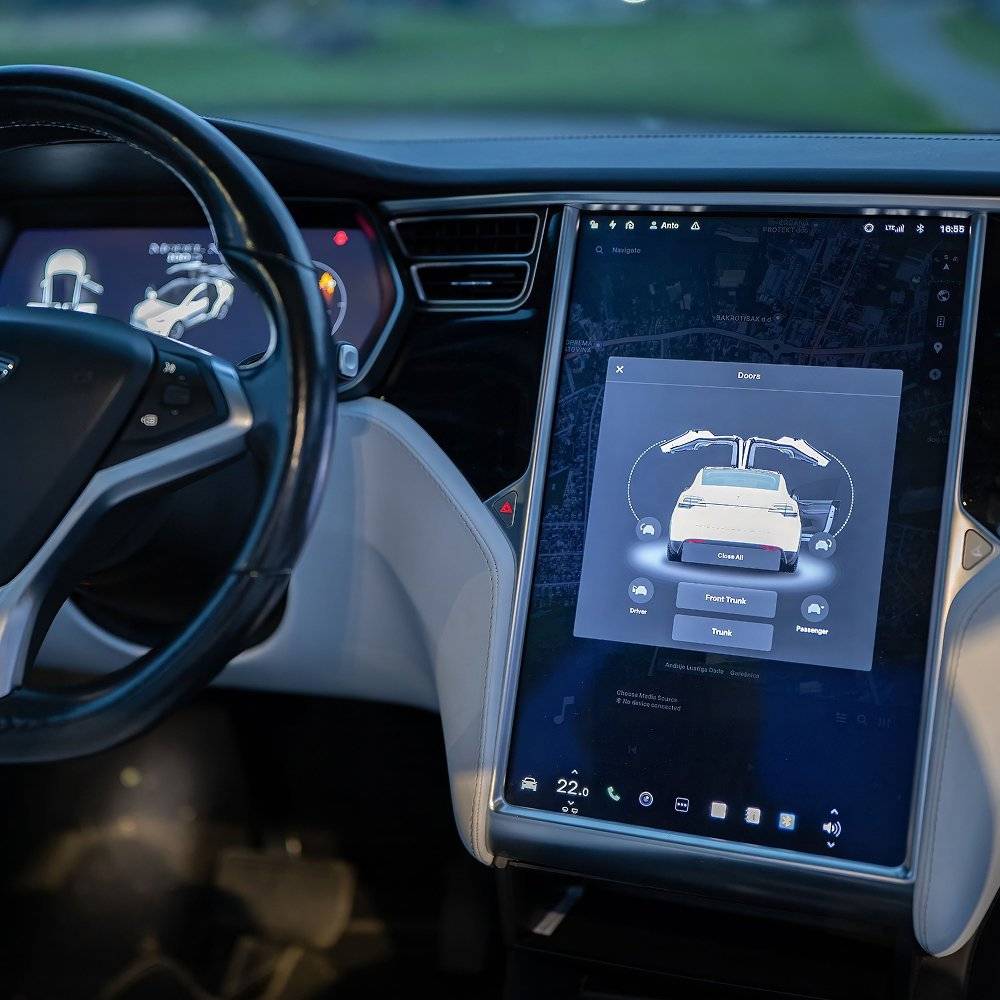 The car's computer – the media control unit (MCU) – runs the touchscreen and handles a lot of things other cars do with physical buttons: climate settings, mirror and seat adjustments, navigation, music, the backup camera view and much more. In the Model 3 and Model Y, which don't have a separate instrument cluster behind the steering wheel, it also shows your speed, the gear you're in and safety warnings.
So when it stops responding, it's not just an inconvenience. The good news: a frozen screen doesn't mean the car stops working. The touchscreen and the systems that actually drive the car (motors, brakes, steering) are separate. Your Tesla will keep driving – you just won't see much of what's going on.
Screen Froze While Driving? Don't Panic
First things first: never reset the touchscreen while driving. During the restart, the display goes dark for a while, which means no speedometer, no rearview camera and no safety warnings on the Model 3 and Model Y.
Here's what to do instead:
- Keep calm and keep driving safely.
The car's driving systems work independently of the screen, so you won't lose steering or brakes. - Find a safe place to stop.
Pull over when it's safe and legal to do so. Keep in mind that you may not see your speed – stick to the flow of traffic. - Shift into Park.
Only then try any of the reset methods below.
If the screen goes completely dark in a Model 3 or Model Y, you lose your speed and gear readout, so it's worth stopping sooner rather than later.
How to Reset Tesla Screen – Step by Step
 There are a few ways to bring your Tesla touchscreen back to life, and the steps are very similar whichever Tesla model you drive. Start with the simplest one and work your way up only if needed.
Method 1: Soft Reset (Touchscreen Reboot)
A soft reset – also called a soft reboot – restarts only the touchscreen. It doesn't turn the car off, doesn't delete any data or settings, and it fixes most freezes. This is the method most owners use, and the one you should try first.
Model 3 and Model Y:
- Shift into Park.
The car must be stationary. - Hold both scroll buttons on the steering wheel.
Press and hold the left and right scroll wheel buttons at the same time until the screen goes black. - Release and wait.
Let go of the buttons and wait about 30 seconds. The Tesla logo appears, and the touchscreen comes back to life.
You don't need to press the brake pedal for this one – holding both scroll buttons is enough.
Model S and Model X:
- Shift into Park.
As above, the car must be stationary. - Hold both scroll wheels on the steering wheel (or yoke).
Keep holding them until the touchscreen goes dark. In older Teslas, release when the Tesla logo appears. - Wait for the system to load.
It usually takes between 10 seconds and a minute.
In older Model S and Model X cars, the instrument cluster behind the steering wheel can freeze independently of the touchscreen. Many owners restart it separately by holding the two upper buttons on the steering wheel until the cluster goes dark.
Cybertruck:
Hold both scroll buttons in Park until the screen goes black, then wait about 30 seconds – the same idea as in the Model 3 and Model Y.
Method 2: Power Cycling the Vehicle
If the soft reset doesn't help – or the screen freezes again shortly after – the next step is power cycling. It turns off the entire vehicle, not just the screen, which also restarts other electronics in the car.
- Shift into Park.
Close all the doors. - Go to Controls > Safety > Power Off.
Confirm, and the car will power down. - Wait at least two minutes.
Don't touch anything during that time – don't open the doors, press the brake pedal, or tap the screen. Any interaction can wake the car up and ruin the process. - Press the brake pedal or open a door.
This wakes the car up, and everything starts fresh.
There's one obvious catch: you need access to a working touchscreen to reach the Power Off button. If the screen is completely unresponsive, do a soft reset first, then power cycle once the screen responds. Tesla actually recommends this order in its manuals.
Method 3: Hard Reset (Disconnecting the Low Voltage Battery)
The hard reset is the nuclear option. It means cutting power from the low voltage battery, which forces every computer in the car to start from scratch.
We'll be honest: this one isn't for most owners. Read any forum post about it, and you'll see why – it's not something you perform on a whim in a parking lot. It involves removing trim panels, disconnecting the low voltage battery and, in some models, the first responder loop. Doing it wrong can damage electronics, cause injury (there's a high-voltage battery nearby, after all), or create problems with your warranty.
If the soft reset and power cycling didn't help, it's usually a sign that something else is wrong – and that's a job for Tesla Service, not for a screwdriver in your garage.
Soft Reset vs. Power Cycling vs. Hard Reset
| Soft reset | Power cycling | Hard reset | |
| What it restarts | Touchscreen only | The entire vehicle | Every computer in the car |
| How | Hold both scroll buttons | Controls > Safety > Power Off | Disconnecting the low voltage battery |
| Time needed | About 30 seconds | At least 2 minutes | Depends on the model (trim removal included) |
| Requires a working screen | No | Yes | No |
| Difficulty | Very easy | Easy | Hard – not recommended |
| Risk | None | None | Damage, injury, warranty issues |
In most cases, the soft reset is all you need. Power cycling handles stubborn glitches, and the hard reset should be left to professionals.
What About a Factory Reset?
Here's a common mix-up: a factory reset won't fix a frozen screen. It's a completely different thing.
A factory reset (under Controls > Service > Factory Reset) erases your personal data – profiles, saved locations, paired phones and settings – and returns the car's software to its original state. It's meant for when you're selling the car or transferring ownership, not for troubleshooting. You'll also need your Tesla account login to do it.
So unless you're about to hand over the keys to a new owner, leave that button alone.
Why Do Tesla Screens Freeze?
A Tesla is essentially a computer on wheels, and like any computer, it sometimes hangs. Can you guess the most common reasons? Here they are:
- Software glitches – a bug, a crashed app, or a process that got stuck. It's by far the most common cause, and exactly what a soft reboot fixes.
- Software update issues – a pending, interrupted or freshly installed software update can make the screen act up for a while. If an update is waiting, install it; Tesla's software updates often include bug fixes.
- Low voltage battery problems – the screen and other electronics run on the low voltage battery. When it's weak or failing, you may see random reboots, dark screens and warnings. Older Teslas used lead-acid batteries, which were a known weak point; since around late 2021, the Model 3 and Model Y use a longer-lasting lithium ion low voltage battery.
- Overheating – a car parked in direct sunlight on a hot day can push the computer's temperature high enough to slow it down or freeze it.
- Overloaded storage – dashcam footage, Sentry Mode clips and large amounts of logged data can strain the system, especially in older cars.
- Hardware failure – in some cases, the media control unit itself is wearing out. More on that below.

The Known Issue in Older Teslas: eMMC Failure
If you drive an older Model S or Model X, there's one hardware issue you should know about.
The first-generation media control unit (MCU1) used an NVIDIA Tegra 3 processor with an 8 GB eMMC – short for embedded MultiMediaCard, a type of flash memory chip. With constant data logging, that chip wore out over time, which led to slow, unresponsive or completely dark screens.
This was a known issue big enough to prompt a recall. In 2021, after pressure from the NHTSA, Tesla recalled about 135,000 vehicles – the 2012–2018 Model S and the 2016–2018 Model X – because a failed eMMC could take out the rearview camera display, the defroster controls and some audio chimes, including turn signal sounds. The fix was a free replacement of the memory board with a bigger, more durable one.
If you own one of these cars and the recall work hasn't been done yet, contact Tesla Service – it's free. Owners who want a longer-term solution can also upgrade to a newer MCU, which is faster and doesn't have the same flaw.
Warning Signs That It's Not Just a Glitch
A one-off freeze isn't a reason to worry. But if you notice any of these warning signs, the problem is likely deeper than software:
- The screen freezes repeatedly, even after resets and power cycling.
- The car gets stuck on the Tesla logo during reboots, or keeps restarting on its own.
- The screen stays dark and doesn't respond to a soft reset at all.
- The backup camera stops working or takes ages to load.
- The screen becomes slow overall – laggy maps, delayed reactions to touch, long loading times.
- Low voltage battery warnings appear on the screen.
- Visible damage to the display, like bubbling or discoloration.
When to Contact Tesla Service
If the soft reset and power cycling didn't resolve the problem – or the screen keeps freezing – it's time to book a service appointment. You can do it directly in the Tesla app, under Service, without having to call or visit a shop.
A few tips to make it go smoother:
- Describe the issue in detail – when it happens, how often, and what you were doing at the time.
- Note down any alerts – take a photo of the error messages, if there are any.
- Mention what you've already tried – this saves time and points the technicians in the right direction.
Tesla can often read the car's data remotely and diagnose the problem before you even arrive, and in some cases, a mobile technician can fix it at your home.
How to Prevent Your Tesla Screen From Freezing
You can't prevent every glitch, but you can reduce the chances of one:
- Keep the software up to date – install updates when they're available.
- Reboot the screen once in a while – a quick soft reset can clear out minor issues before they become annoying.
- Manage your storage – clean up old dashcam and Sentry Mode clips from the USB drive.
- Watch the low voltage battery – don't ignore warnings about it.
- Avoid extreme heat – use Cabin Overheat Protection or park in the shade when possible.
To Sum It All Up
A frozen Tesla screen looks scary, but it's usually just a software hiccup. Shift into Park, hold both scroll buttons on the steering wheel until the screen goes black, and wait about 30 seconds – that fixes most cases. If it doesn't, power cycle the car via Controls > Safety > Power Off and wait at least two minutes.
Leave the hard reset to professionals, don't confuse it with a factory reset, and if the screen keeps freezing, book a service appointment. Especially if you drive an older Model S or Model X – it might be the eMMC chip calling it quits.
FAQ
Comments(0)
All ratings
Popular posts:


and get to know all compatible products for your BMW or MINI
Where to find your VIN?