


Radoslaw Zbroinski
May-15-2026
How to Reset Apple CarPlay? Full Troubleshooting Guide
Why Reset Apple CarPlay in the First Place?
The Basic Apple CarPlay Reset
Reset Apple CarPlay on your iPhone
Reset the device list on your BMW
Resetting Wireless Apple CarPlay
Step 1 – Forget the car in Bluetooth settings
Step 2 – Double-check to make sure all is forgotten
Step 3 – Pair again from scratch
How to Reset Your iDrive System
The "Clean Slate" Method – When Nothing Else Works
Resetting Network Settings on iPhone
When to Call Your Dealer (or Consider a Retrofit)
How to Reset Apple CarPlay? The Short Answer
You hop in the car, plug in your phone, and... nothing happens.
The CarPlay icon doesn't appear. Or it appears, freezes, and reboots your infotainment system three times before you've even left the driveway. Or worse – wireless CarPlay worked perfectly yesterday and today your iPhone refuses to acknowledge your BMW exists... Apple CarPlay is one of those technologies that works brilliantly 95% of the time and frustrates the absolute daylights out of you the other 5%. And when it does break, it's almost never something a single setting change can fix. The good news is that most CarPlay problems can be resolved with a proper reset – but "a proper reset" is more than just unplugging your phone.
Coming up in this guide, you'll learn:
- How to reset Apple CarPlay correctly?
- Why might your Apple CarPlay even need a reset in the first place?
- What is the basic CarPlay reset procedure on iPhone and BMW?
- How to perform the full "clean slate" method when nothing else works?
- When to give up and call your dealer?
Let's get into it.
Why Reset Apple CarPlay in the First Place?
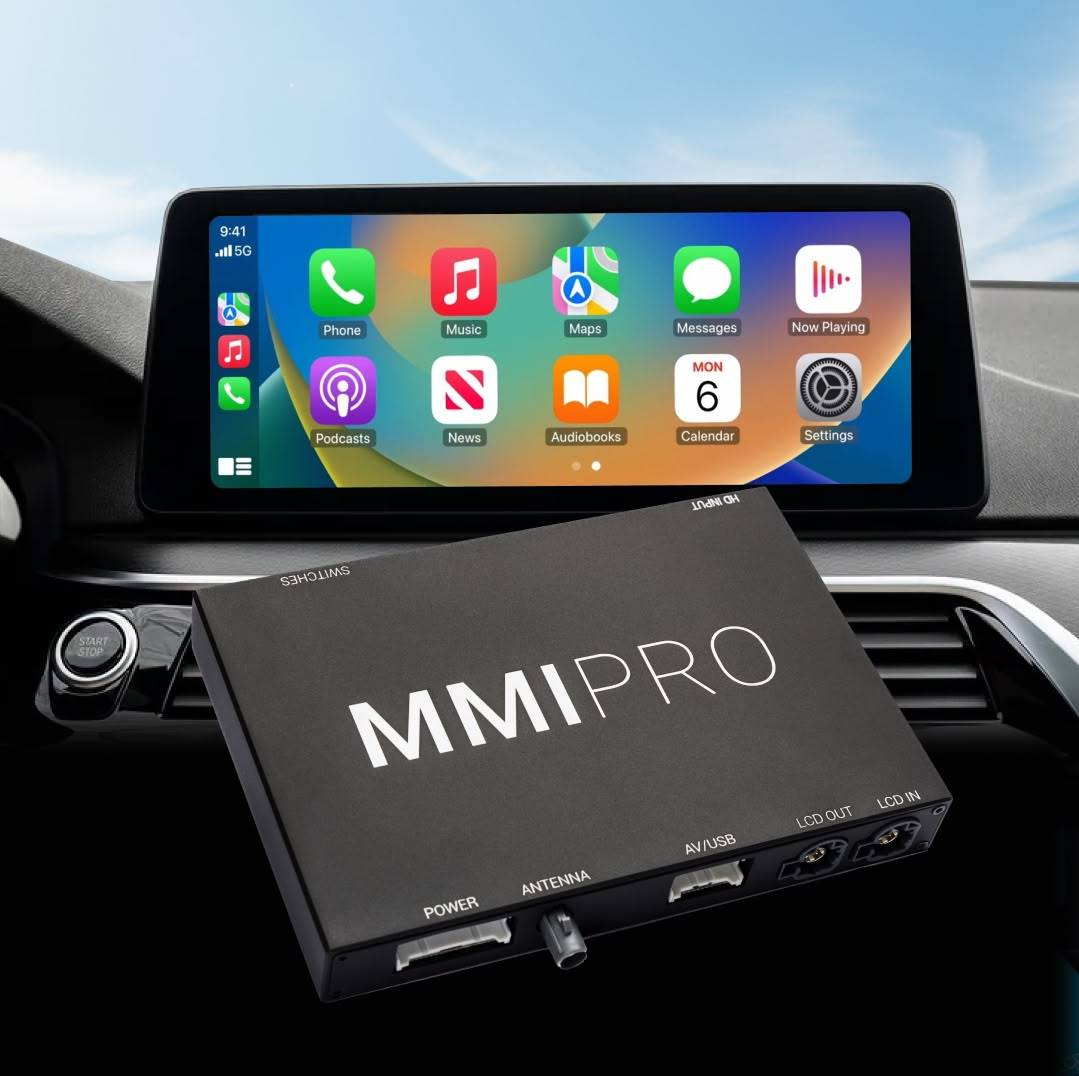 Before we start tearing through settings menus, it's worth understanding why CarPlay might stop working from time to time. The connection between your iPhone and your car's infotainment system relies on a stack of overlapping technologies – Bluetooth and Wi-Fi (for wireless CarPlay) or USB data over a cable and the underlying CarPlay protocol layered on top. When any one of these gets a corrupted profile or stale pairing data, the whole thing falls apart.
The most common triggers for that we see are:
- An iOS update changing your phone's connection signature → Your car's stored pairing profile no longer matches, and the system silently fails to authenticate.
- You restored your iPhone from a backup → Counterintuitively, the backup carries over corrupted CarPlay data from the old phone, breaking what would otherwise be a fresh setup.
- A vehicle software update → BMW's regular over-the-air updates occasionally reset or invalidate stored device profiles.
A reset clears the stale pairing data on both sides and forces a fresh handshake. The trick is doing it in the right order – clearing the iPhone alone or the car alone almost never works, because each device tries to use the other's leftover profile and the loop continues.
The Basic Apple CarPlay Reset
If the issue is mild, like a frozen screen, missing apps, or audio cutting out – start here. This is the lightest possible reset and it should resolve most problems. For the big guns, scroll down a bit further in the article (if you've already tried this one).
Reset Apple CarPlay on your iPhone
Open the Settings app and tap General, then CarPlay. Tap your car in the list, then tap Forget This Car. That's the core "reset CarPlay" action – it removes the stored CarPlay pairing for that specific vehicle. After forgetting the car, force reset your iPhone. We mean a genuine restart, not just a screen lock – iPhones never really fully shut down; even if they’re turned off or the battery dies, they stay semi-active.
How to do it?
- Press and quickly release the volume up button.
- Press and quickly release the volume down button.
- Press and hold the side button until the Apple logo appears.
- Do not slide to power off; instead, keep holding the button until you see the Apple logo.
This clears any cached connection state that the "Forget This Car" action might have left behind.
Reset the device list on your BMW
On the BMW side, you need to mirror what you just did. Use the iDrive controller or touchscreen to navigate to your mobile devices list. In case of MGU COM → Mobile Devices. In case of NBT EVO Media/Radio → Manage Mobile Devices. Select your iPhone from the list and choose the option to delete it from the vehicle's memory.
Both sides are now clean, so now is the time to pair the phone again from scratch.
- In your iDrive system, go to Manage mobile devices and forget the iPhone pairing.
- Start a new Bluetooth connection – DON’T CHOOSE the Apple CarPlay option right away; instead, pair using Bluetooth audio only.
- Once Bluetooth is connected, you’ll get prompts on both your iPhone and iDrive asking if you’d like to use Apple CarPlay. Confirm it and it should pair properly.
If this didn't work, keep reading – it usually means there's stale data hiding in the Bluetooth or Wi-Fi layer.

Resetting Wireless Apple CarPlay
Wireless CarPlay is more convenient and significantly more fragile than the wired version. The reason: wireless CarPlay isn't actually "wireless." It uses Bluetooth to initiate the connection, then hands off to a local Wi-Fi network that your car broadcasts. That means there are three pairing profiles to clean up, not one.
Step 1 – Forget the car in Bluetooth settings
On your iPhone, go to Settings → Bluetooth. Find your BMW in the device list, tap the blue (i) icon, and tap Forget This Device. This removes the Bluetooth pairing entirely and it also automatically deletes the Wi-Fi network as well as forgets the car in CarPlay settings.
Step 2 – Double-check to make sure all is forgotten
While the name of this step sounds funny and forgetting the car in Bluetooth should do it for all places, making sure it actually worked is a good thing.
Step 3 – Pair again from scratch
Force reset both your iPhone and your car. In the iDrive system, go to Mobile Devices → Connect New Device, then choose Apple CarPlay when prompted. Follow the pairing dialogs on both screens.
How to Reset Your iDrive System
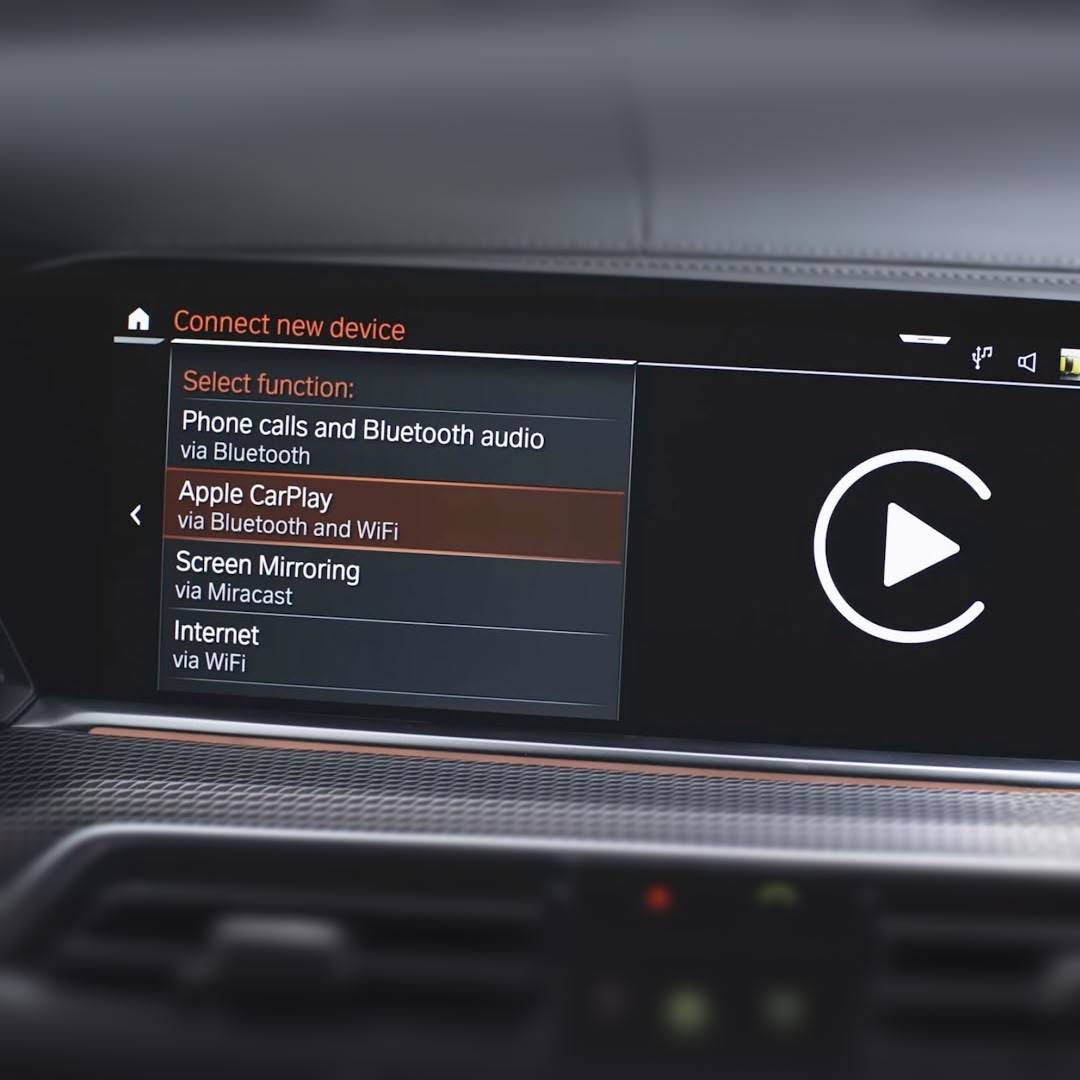 Sometimes the problem isn't the pairing data – it's the car's infotainment system itself. BMW iDrive runs millions of lines of code on hardware that, despite being premium, still benefits from a reboot now and then.
To reset iDrive, get into the car with the ignition on (engine off is fine). Press and hold the volume knob for about 20-30 seconds. The screen will go black and the system will reboot. This is the standard iDrive soft reset, and it clears most temporary glitches without erasing your personal data, radio presets, or paired devices.
If a 30-second hold doesn't fully solve it, keep holding for around 70 seconds. The screen will cycle twice – this is a deeper reboot that refreshes additional communication modules, including the ones responsible for Bluetooth and Wi-Fi handshakes.
Neither reset deletes anything important. Worst case, you might have to re-confirm the time zone or your driver profile.
The "Clean Slate" Method – When Nothing Else Works
If you've done the basic reset and CarPlay is still misbehaving, the issue is almost certainly that pairing data is half-cleared somewhere. The clean slate method handles this by clearing everything in the correct sequence, with no shortcuts.
Do these steps in this exact order:
- On your iPhone, forget the car in CarPlay settings – Settings → General → CarPlay → [car] → Forget This Car.
- On your iPhone, forget the car in Bluetooth settings – Settings → Bluetooth → tap (i) → Forget This Device.
- On your iPhone, forget the Wi-Fi network – Settings → Wi-Fi → tap (i) next to the car's CarPlay network → Forget This Network.
- On your BMW, delete the iPhone from the mobile devices list – via the iDrive controller.
- Force reset your iPhone – a full power-off and power-on, not just a lock-screen sleep; this can be a huge help for getting CarPlay fixed.
- Reset iDrive – 30-second volume knob hold until the screen reboots.
- Pair everything again from scratch – following the standard iDrive pairing flow or, if it didn’t work, pairing the Bluetooth audio first and then, once prompted that the car is also capable of using CarPlay, accepting the option.
The order matters because each system uses the other's stored profile to authenticate. If you delete one side and try to reconnect before deleting the other, the still-paired side will reject the connection as already-known-but-not-matching.
Resetting Network Settings on iPhone
When the clean slate method doesn't fix things, the next step is to reset all network settings on your iPhone. This is more aggressive – it forgets every Wi-Fi network, every Bluetooth pairing, and every VPN configuration on your phone – but it's still less destructive than a factory reset.
Go to Settings → General → Transfer or Reset iPhone → Reset → Reset Network Settings. Enter your passcode to confirm.
Your iPhone will restart. You'll need to re-enter your Wi-Fi passwords and re-pair any Bluetooth devices (headphones, smartwatches, other cars), but nothing else changes – your apps, photos, messages, and personal data are untouched.
After the restart, get into the car and pair from scratch. A surprising number of stubborn CarPlay issues clear up after a network settings reset because they were caused by corrupted Wi-Fi state that the per-network "Forget" doesn't fully clean up.
When to Call Your Dealer (or Consider a Retrofit)
There's a point at which more troubleshooting isn't going to help. If you've worked through the full clean slate method, reset your network settings, swapped cables, checked for software updates on both your iPhone and your car, and the issue persists – or if the problem is wireless CarPlay refusing to work in a car that's never supported wireless in the first place – it's time to consider one of two paths.
Visit your BMW dealer if your car was sold with factory Apple CarPlay and the system has stopped working entirely. An iDrive software update or a head unit reflash (we offer both of these services as well, so you don’t have to visit your dealership) can resolve issues that are invisible at the user level. This is also the right call if you suspect hardware failure.
Consider a CarPlay retrofit for your BMW if it didn't come with the feature from the factory or if it's older than the wireless-capable hardware Apple now expects. BimmerTech's Apple CarPlay Retrofit for BMW activates full wireless Apple CarPlay through your existing iDrive system on most BMW models, and it sidesteps a lot of the pairing issues people see with marginal factory implementations. It's not a fix for a broken head unit – it's a way to add a feature, or to replace a factory implementation that's never quite worked properly.
How to Reset Apple CarPlay? The Short Answer
Most Apple CarPlay problems come down to corrupted pairing data on one side, the other, or both. Resetting CarPlay properly means:
- Forgetting the car in three places on your iPhone – CarPlay settings, Bluetooth, and Wi-Fi (forgetting it in just one spot should forget all of them, but it’s worth double-checking to make sure).
- Deleting the phone from the iDrive device list.
- Rebooting both sides before pairing again from scratch.
Skip any of these steps and you're likely to land back where you started.
For most users, the basic CarPlay reset works on the first try. For the rest, the clean slate method covers it. And if neither does the job, it's a cable, a hardware fault, or a job for a dealer or a retrofit – not another round of settings menus.
FAQ
Comments(0)
All ratings
Popular posts:



and get to know all compatible products for your BMW or MINI
Where to find your VIN?